Tutorial
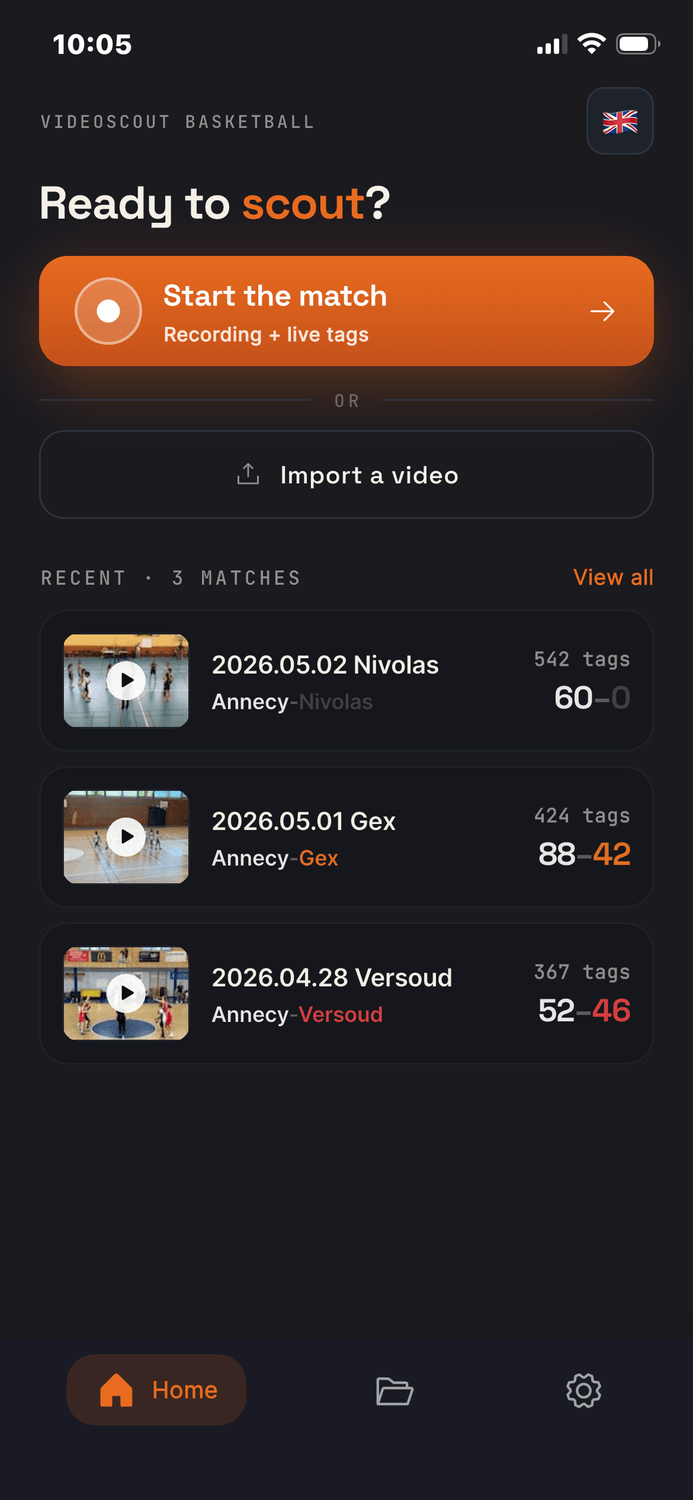
Click on "Start the match" if you want to record and tag a new game Live
or click on "Import a video" if you have recorded the game earlier, and you want to tag it now, in a quit environment
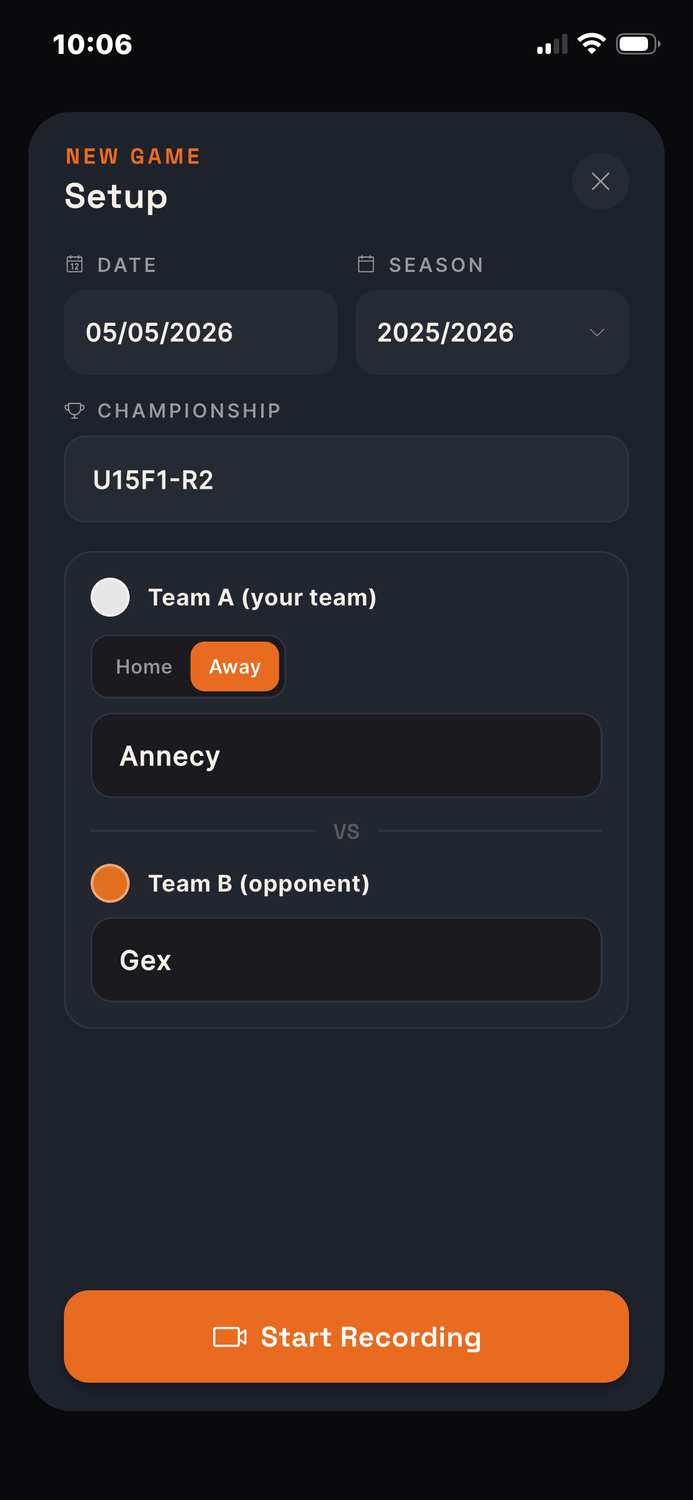
Enter the game's information
Define the "Date" of the game, and season will appear automatically
In "Championship", you have a free text to identify the competition (ex: Under 15, Regional 2, Tournament, etc...)
Then for "Team A (your team)" you select the jersey color, you use the toogle to set if you are playing at home or away, and you have a text to enter the name of the Club/Team/City
Then you do the same for "Team B (opponent)"
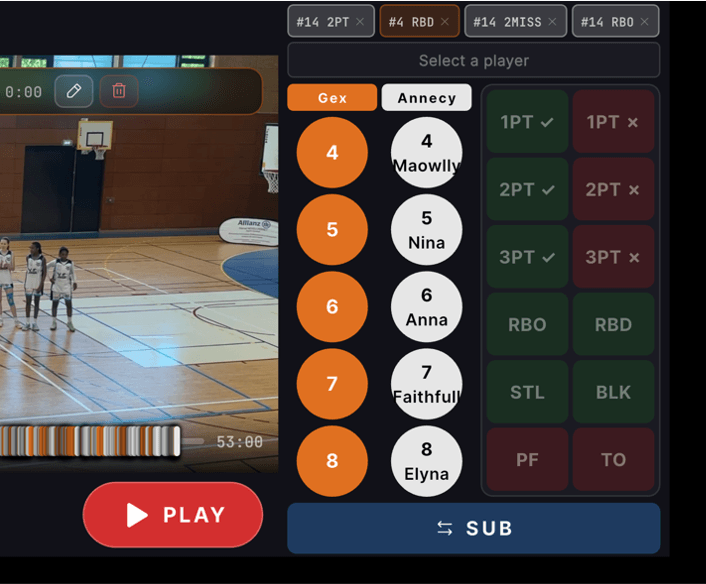
The first thing to do when you start a game, it is to click on SUB to adjust the teams rosters
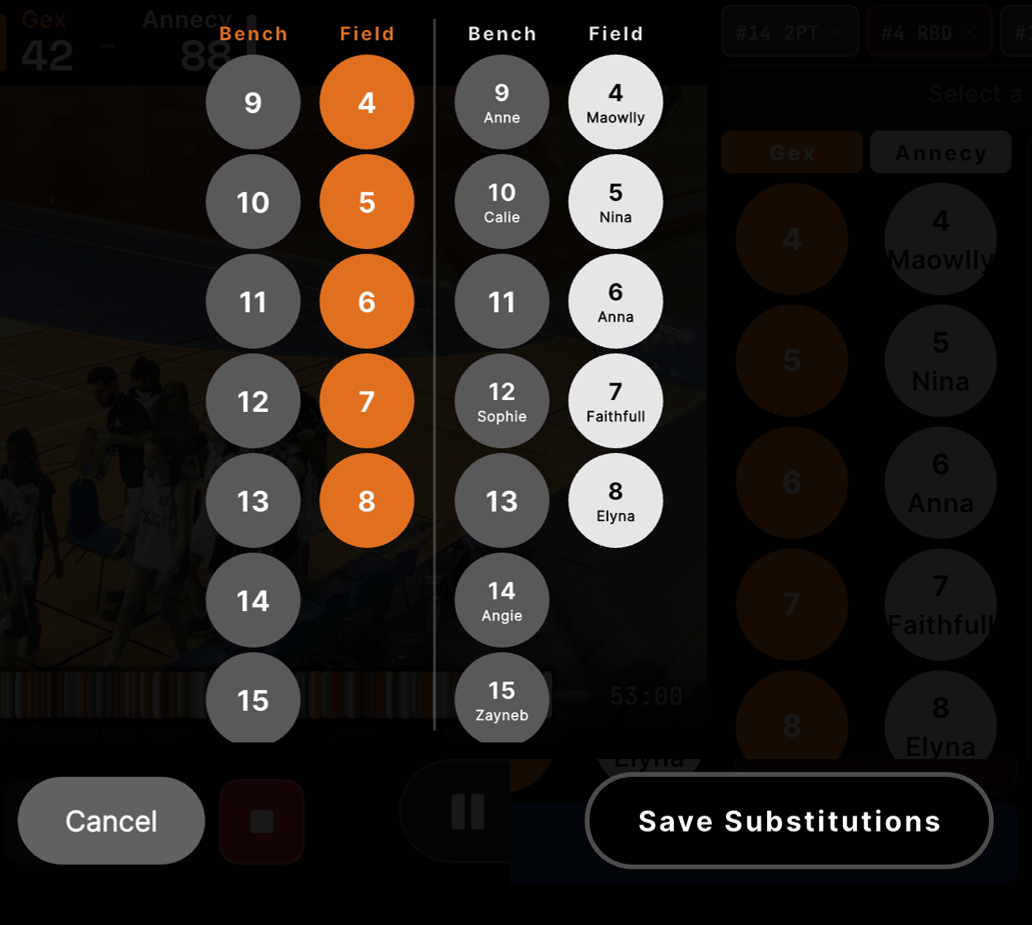
Now in the roster, you can do a Long Click on a specific player, to edit.
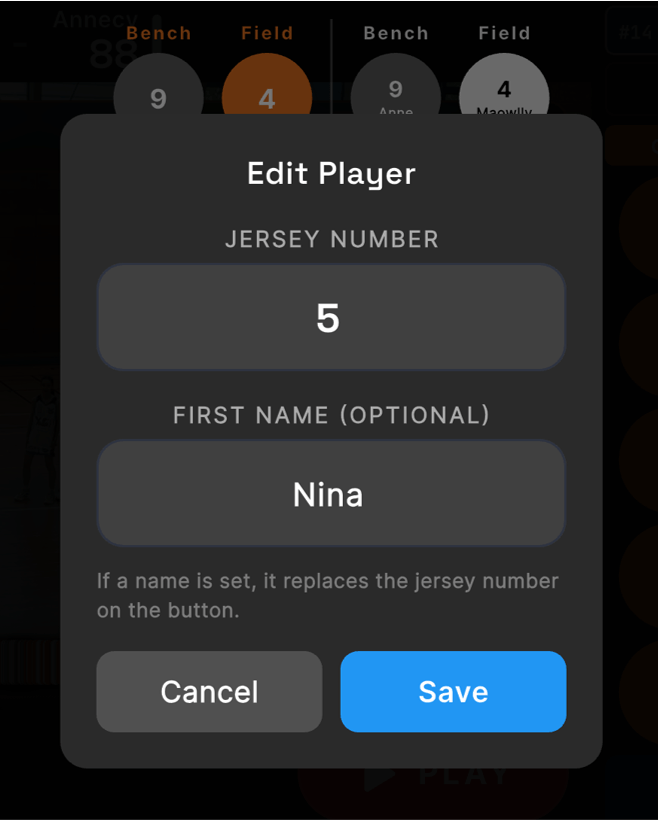
For instance, in the roster, I selected the player #5 in the white team
I am now able to change the Jersey Number (ex: to 23) and to enter a Firstname, because it is often easier when you know the team to look for names instead of numbers
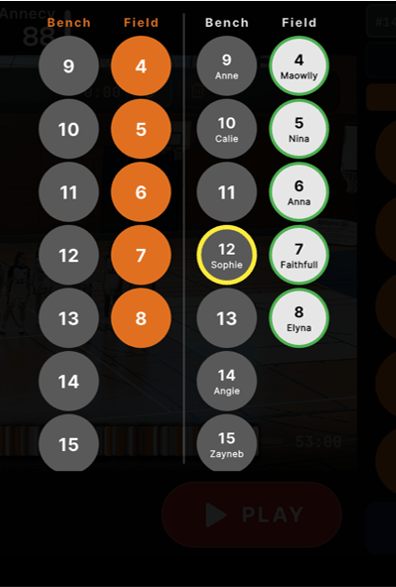
It is also on this screen that you can swap players from the Bench to the Field during the game, to record substitutions.
In this example I select the player "#12 Sophie" who is on the bench, and then I click on the player "#6 Anna" who is on the field, to make the substitution
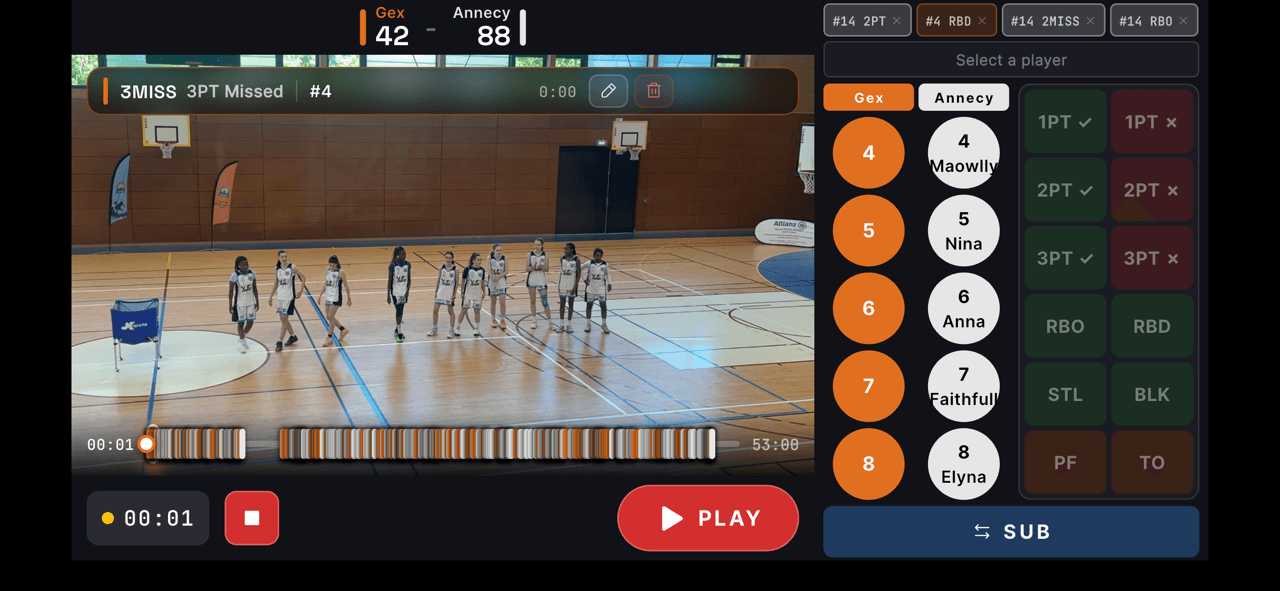
Now it is time to start tagging
Click on RECORD/PLAY to record the game
Click on PAUSE when the ball is not in play, so that you get real playing minutes
At anytime (in recording or in pause) you can TAG ACTIONS, by first clicking on a player, and then clicking on an action type
Note : The action you recorded is overlaid on top of the video, and the list of the last actions is also recorded at the top right hand corner of the screen, to help you.
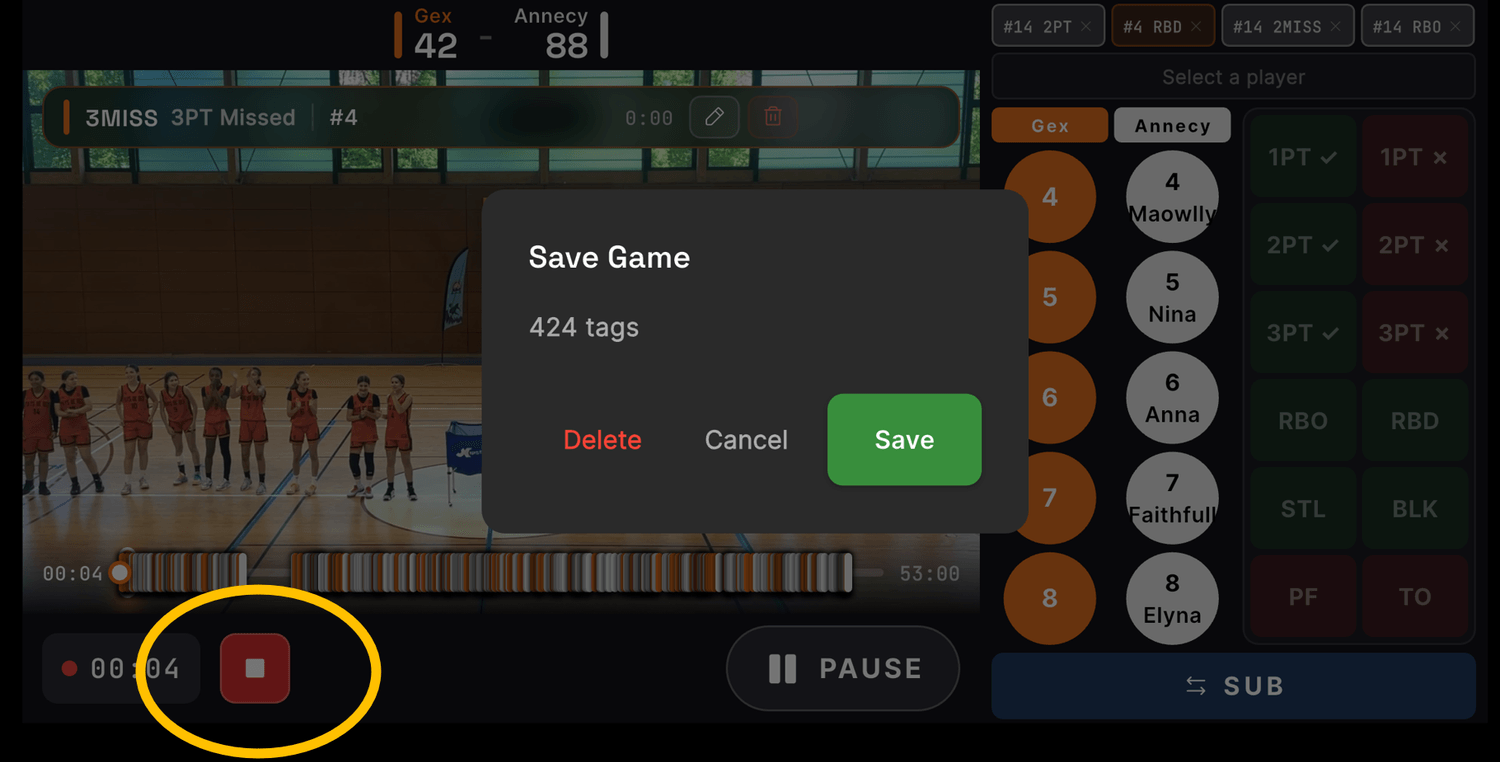
❗❗ Click STOP only once at the end of the game, to stop the recording
The game is saved and you can now review your stats
You can also come back to the game to edit the tags, if you see some mistakes
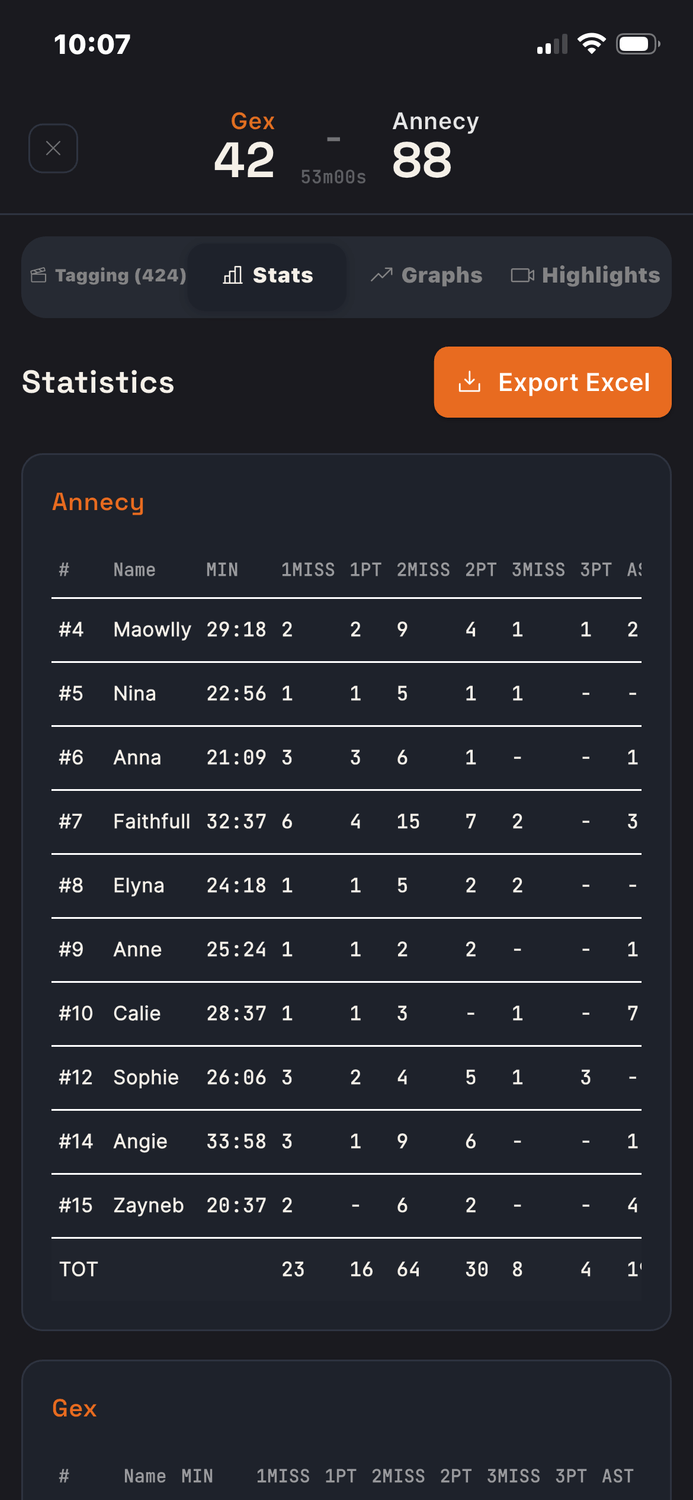
Now you can go to the STATS view, to look at the statistics of both teams
You can also EXPORT TO EXCEL if you want
Note: as ASSISTS are difficult to track live, you don't have to do it. When you record a successful 2PT or 3PT action, the system will automatically put an AST tag for player #999.
Then you can review assists calmly at the end of the game, to allocate them to the right players.
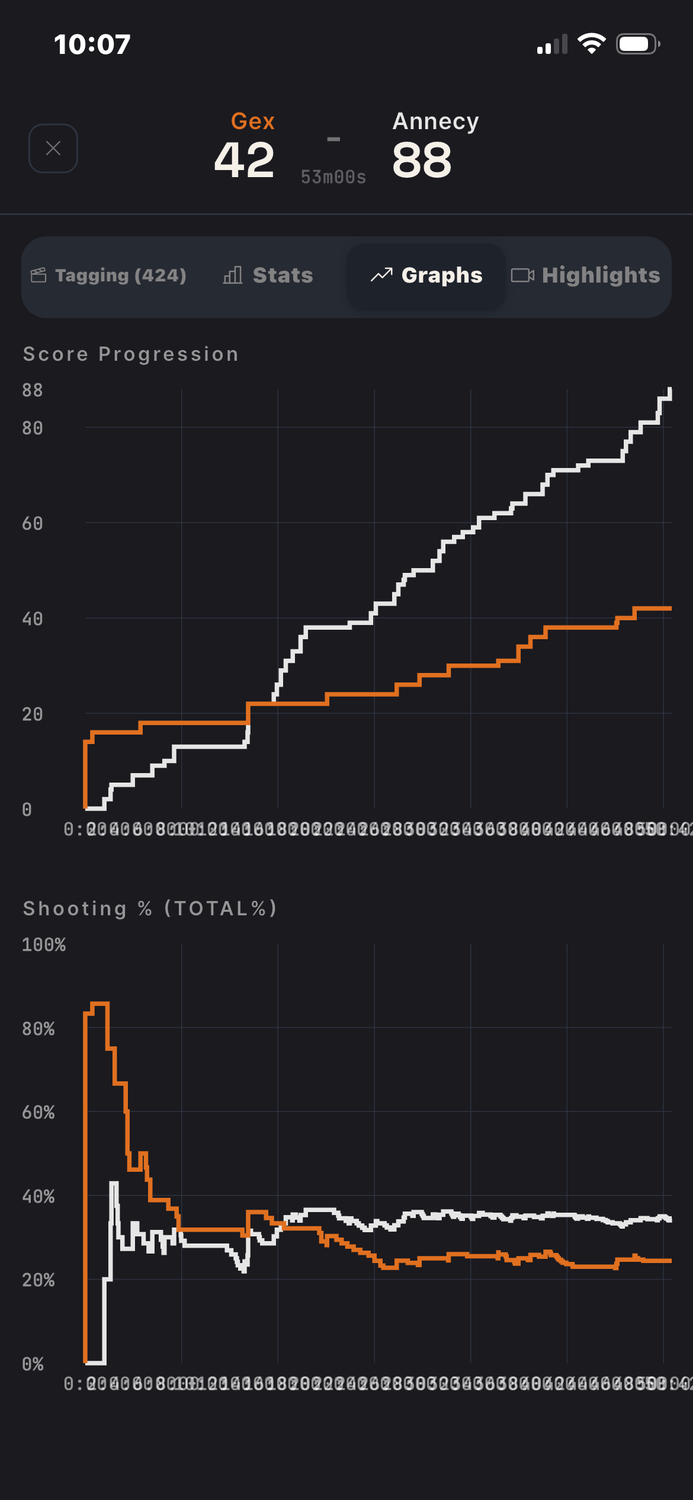
You can also go to the GRAPHS view to see:
How the score and shooting percentage of each team
has evolved throughout the game
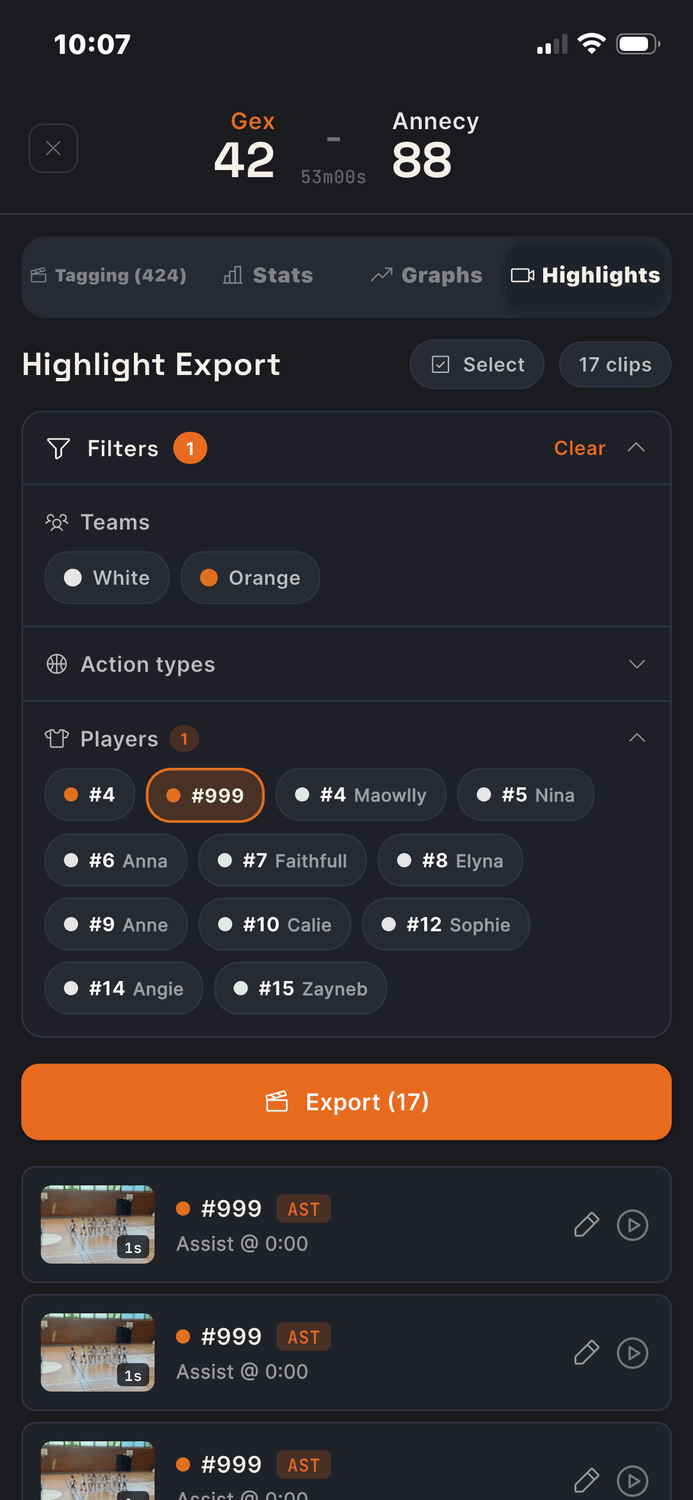
Now in the HIGHLIGHTS view, you can fine tune the assists
As stated earlier, ASSISTS are difficult to track live. So when you record a successful 2PT or 3PT action, the system will automatically put an AST tag for player #999.
Now you can filter on player #999
You will see below each clip with an ASSIST and you can review them one-by-one below, to allocate the stat to the right player
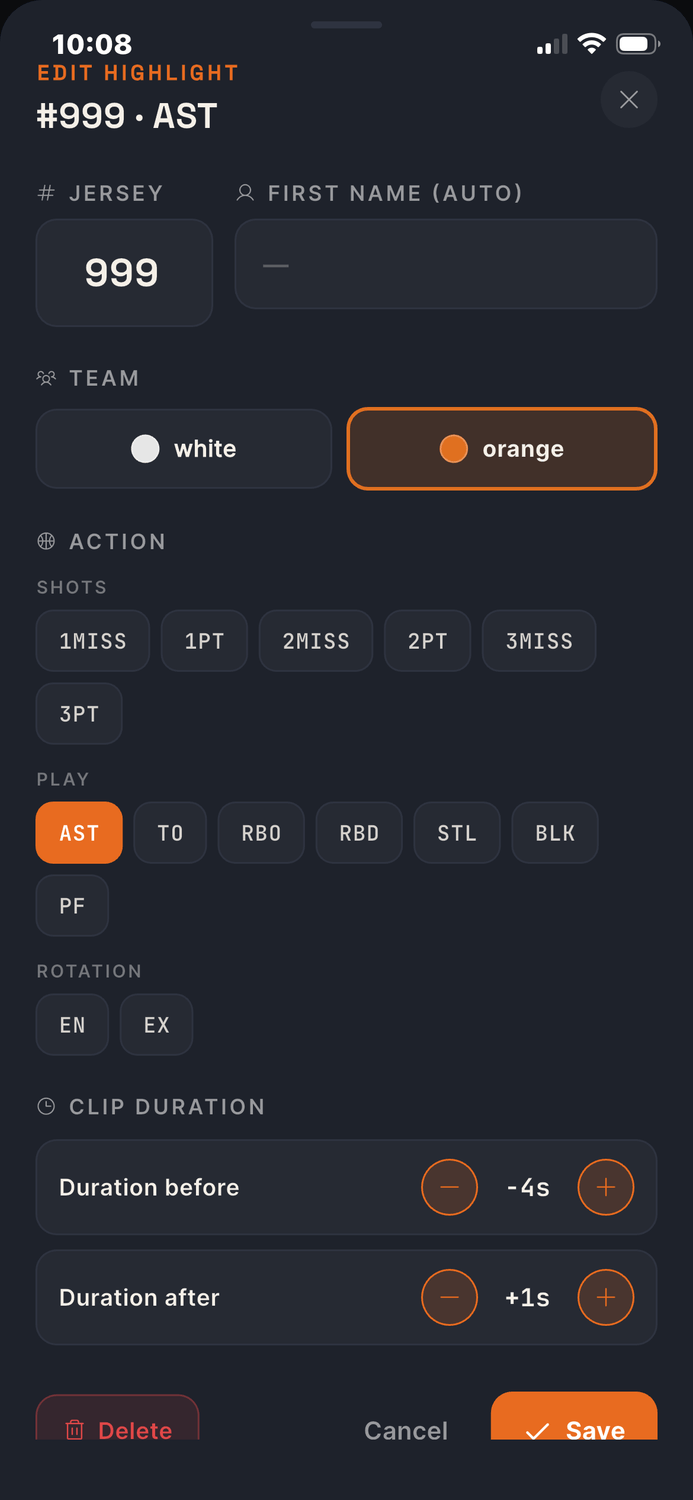
If you EDIT ONE CLIP, you can change the player #999 by the right jersey number.
You can also use this view for other ACTIONS, if you realize that you made a mistake when choosing your tag (ex: you recorded a 3PT, but it was only a 2PT as the player had the foot on the line)
By default, the highlight clips take -4sec and +1sec around the time you put the tag. In this view, you can fine tune that, if for instance this action deserves to show -6sec before the tag, to see all the play developping nicely
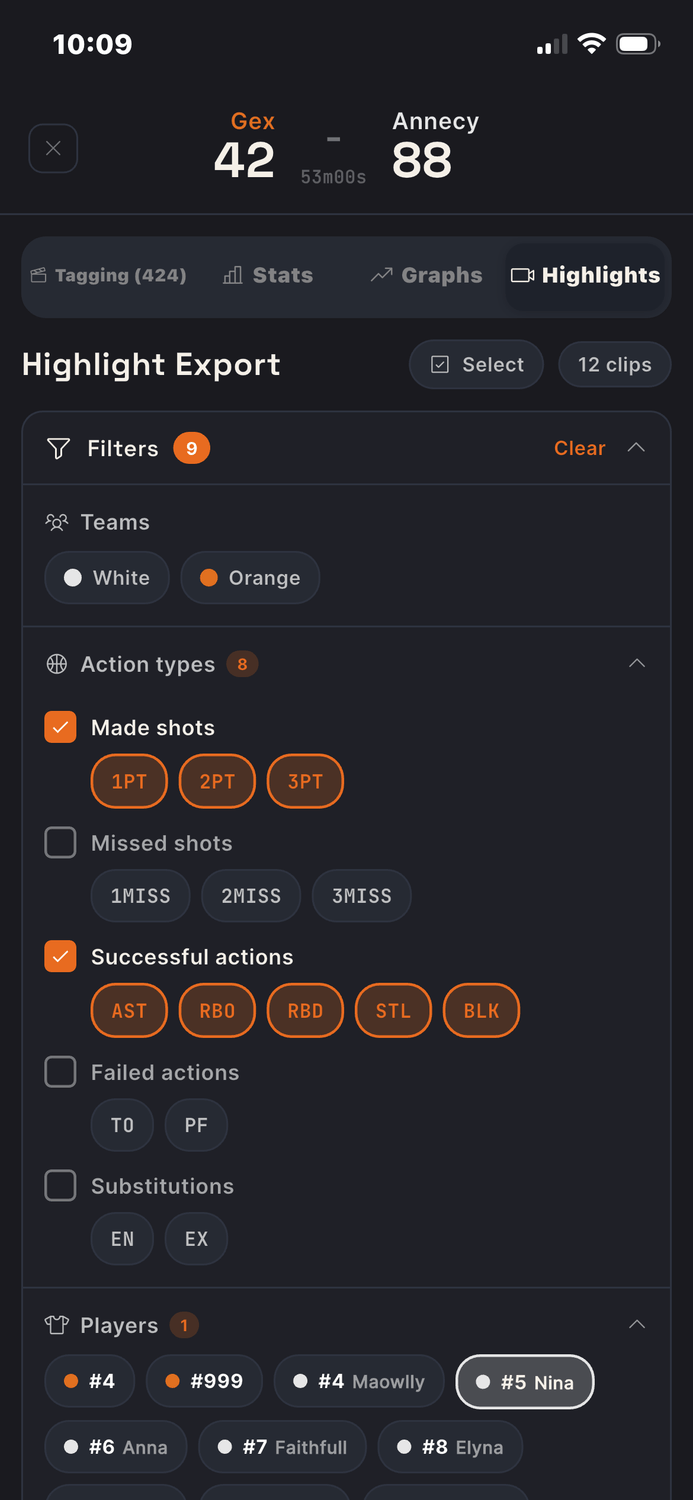
Then in the HIGHLIGHTS view, you can filter as you want to extract the clips that are interesting to you.
In this example, I have decided to extract all the "Shots Made" and "Successful actions" of player "White #5 Nina"
This is particularly useful for parents or coaches who want to focus on a specific type of actions of the game, either to communicate on Social Network, or create Scouting Videos, or focusing on improvement opportunities for the team
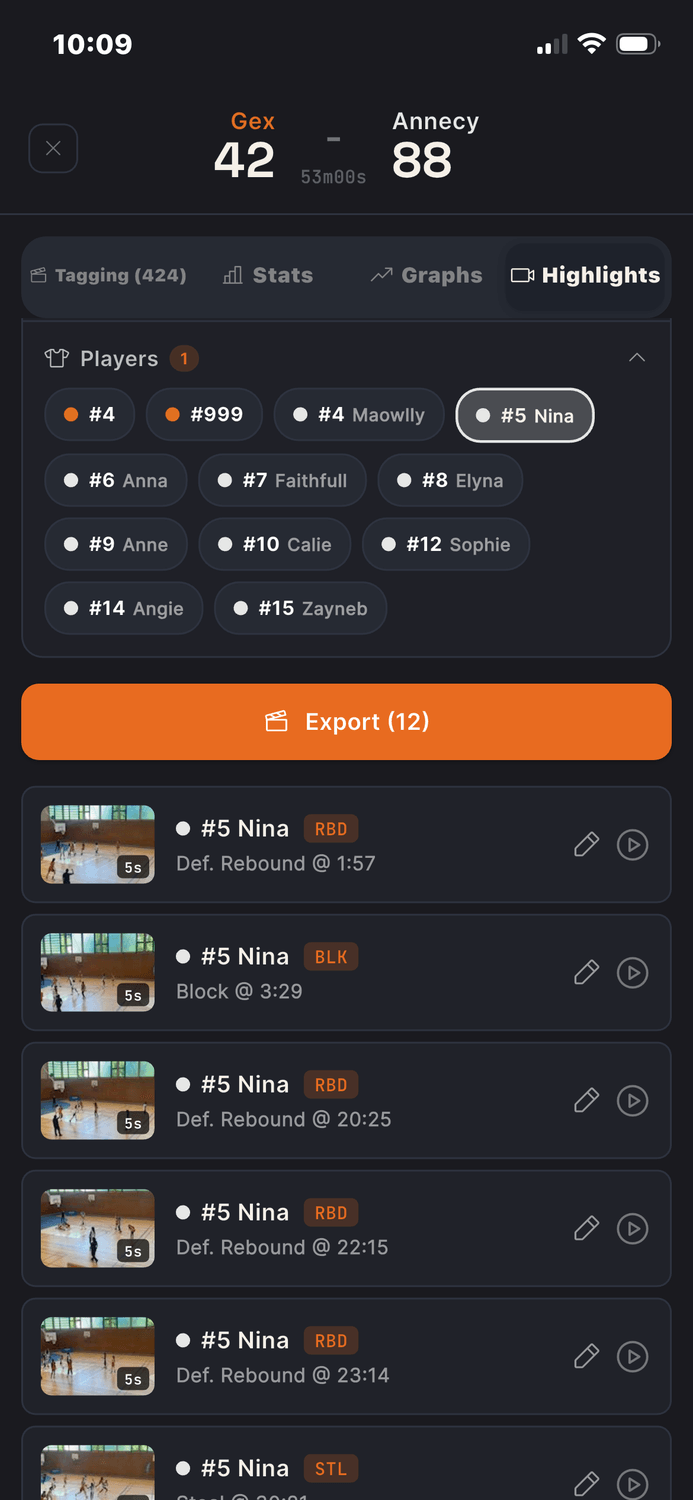
Before extracting, you can review each clip, if you like, to make sure that there is no tagging error, or that the -4/+1sec is working well for these actions.
Click on EXPORT, and you will have the possibility to save the mp4 video into your GALLERY
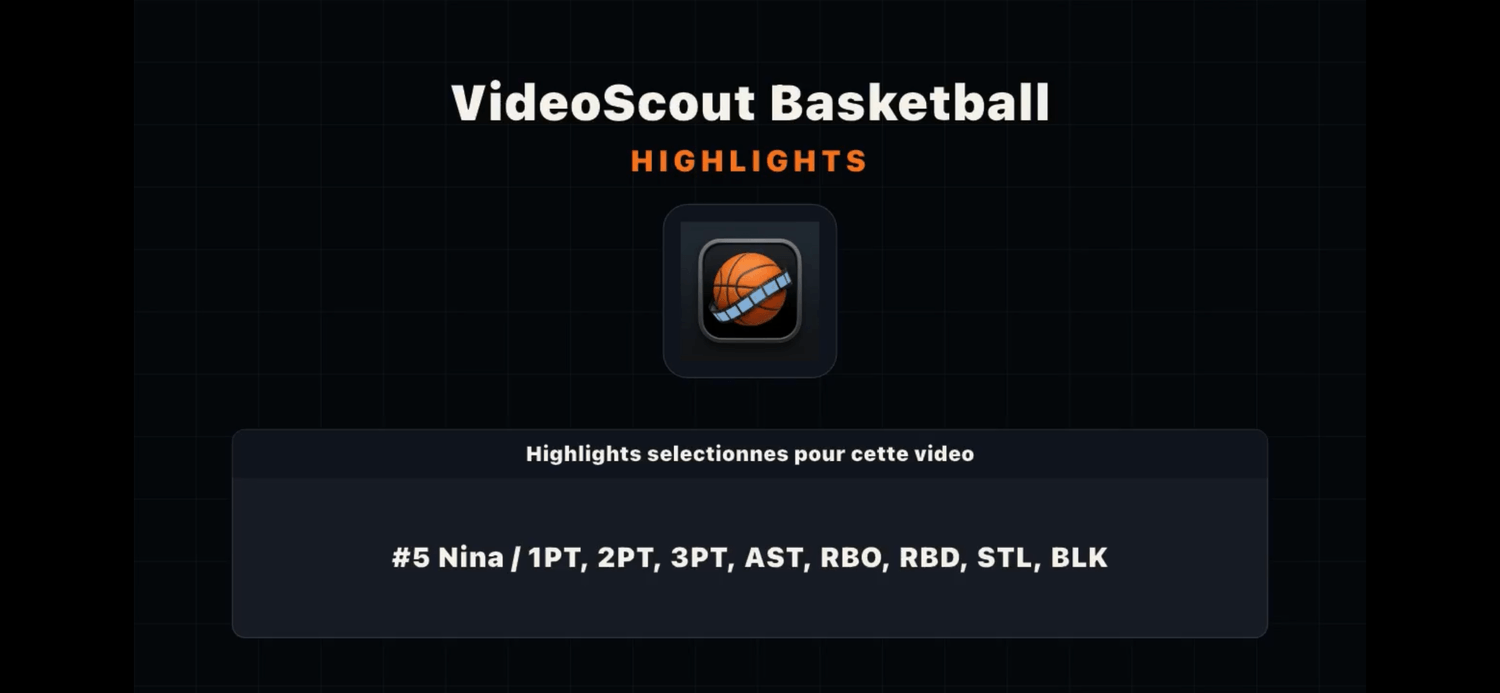
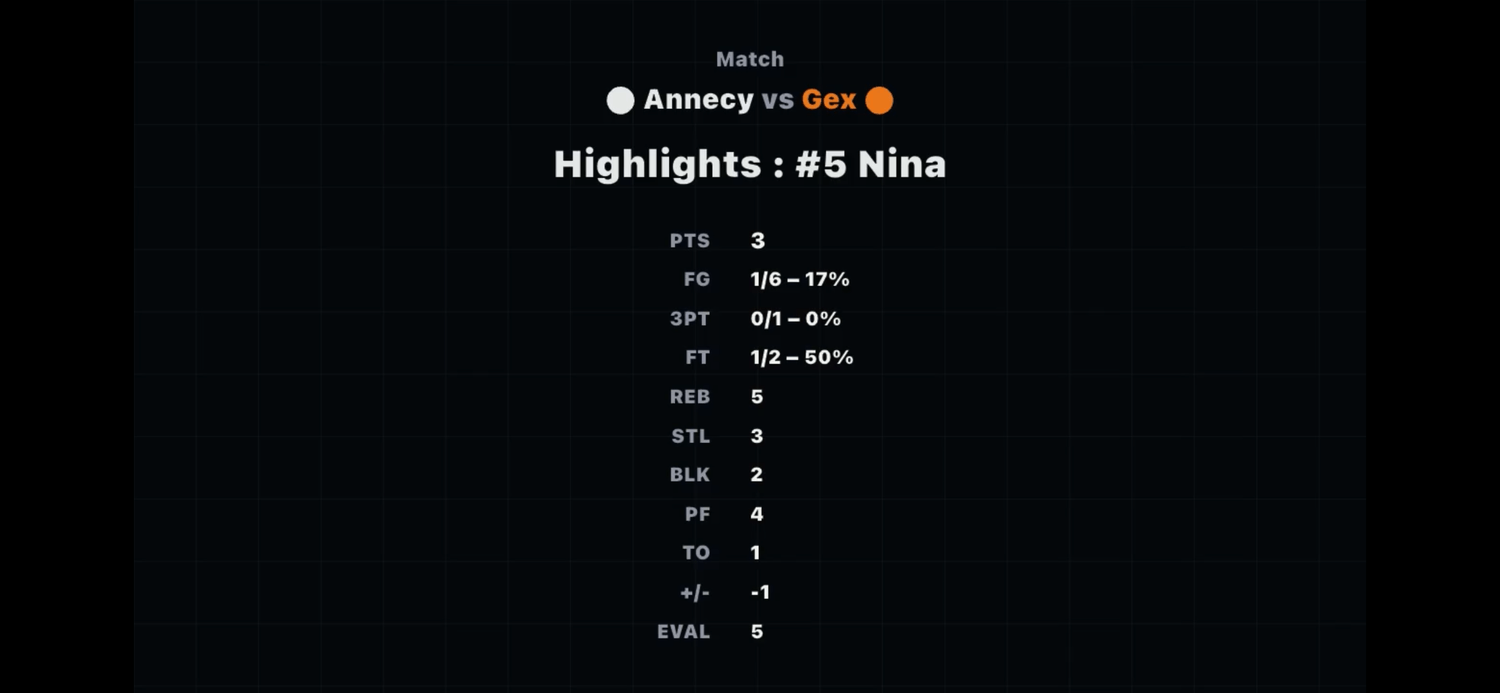
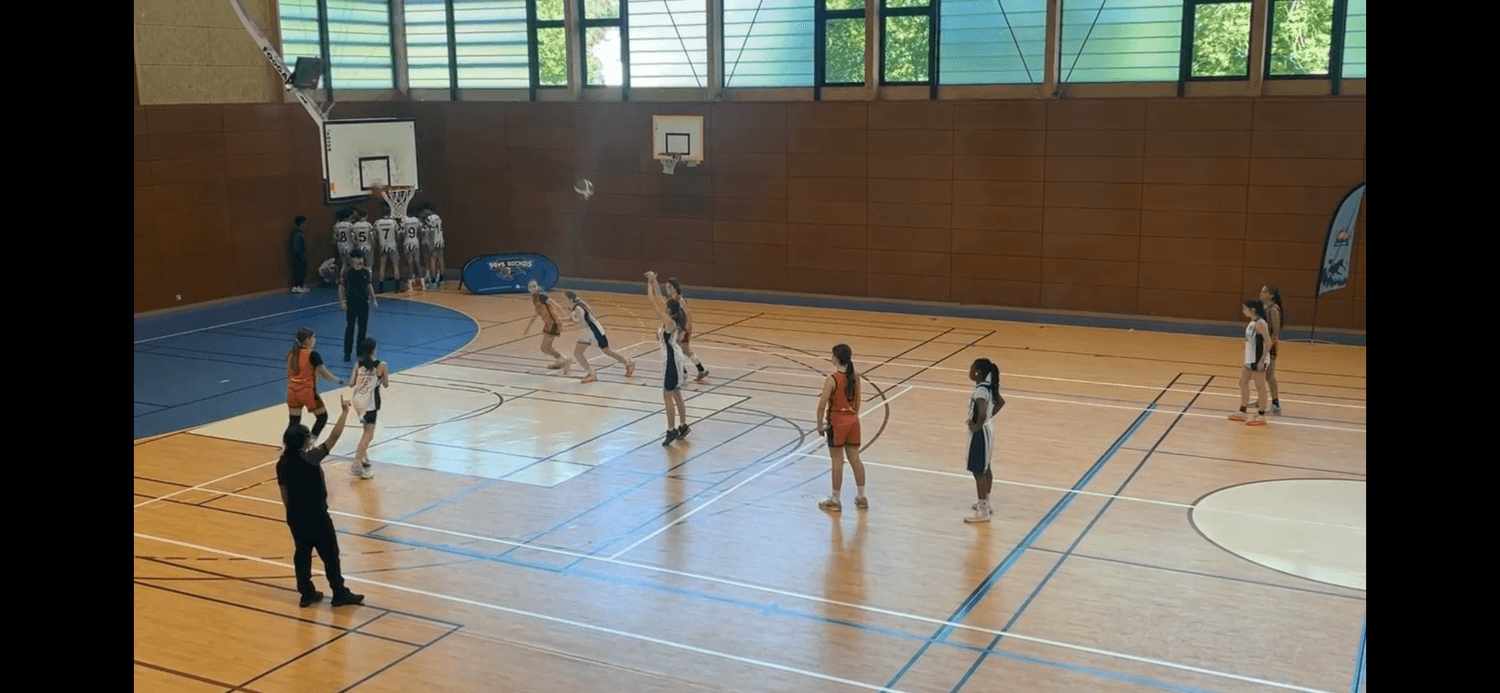
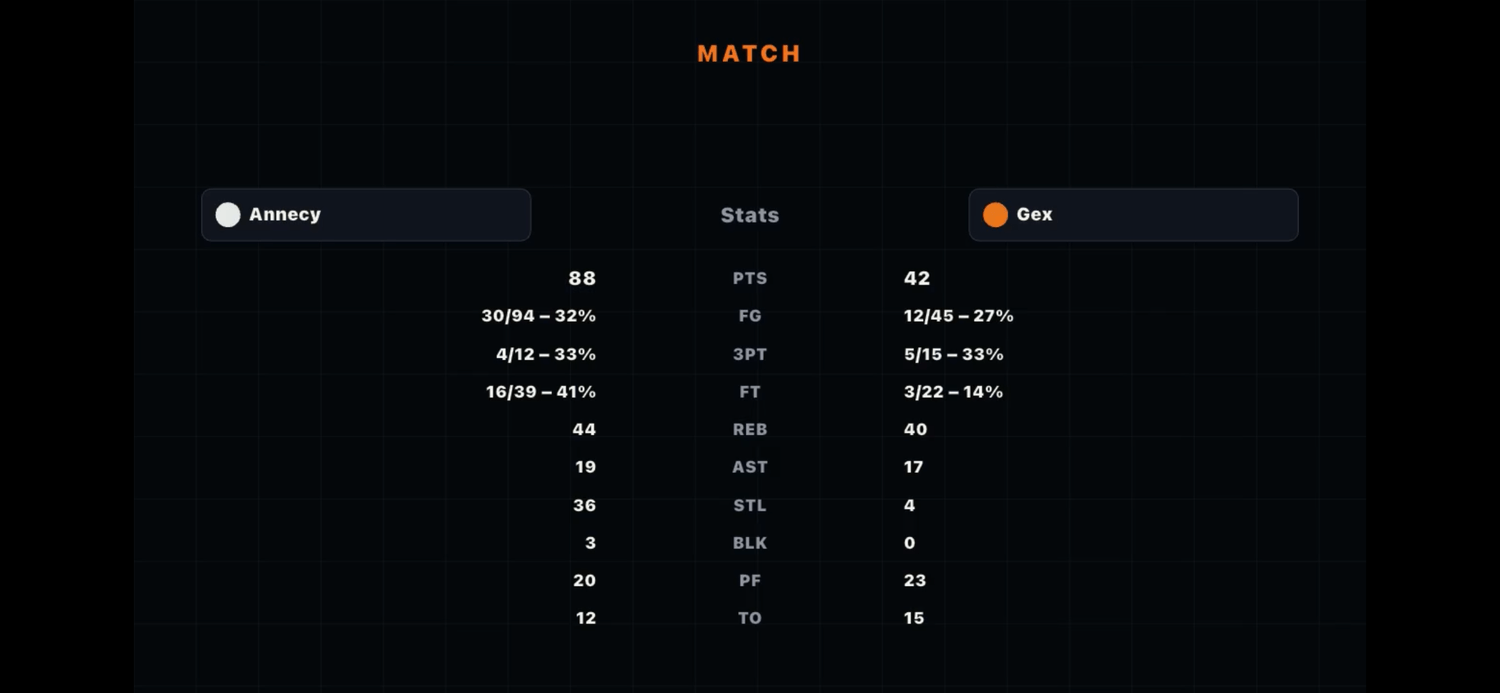
The extracted video will include :
An INTRO, with the filters used to create the highlights
A PLAYER CARD, to summarize the Player's statististics (if there is only one player selected in the video)
An OUTRO, with the statistics of both teams